How to Transcribe Your Audiobooks
Audio is hard to search. A transcript makes a book you own findable: locate the passage you half-remember, pull a quote with its timestamp, take study notes, or read along with the narration. OpenAudible transcribes on your own computer with a built-in speech engine — no separate app, no upload, no account, and no network connection.
What you'll need
- A copy of OpenAudible (free download)
- Platform: Windows, Mac or Linux
- A book that has already been converted, so it has an MP3, M4B or M4A file
- One speech model, downloaded from inside OpenAudible — 466 MB for the recommended one, up to 1.6 GB for the most accurate
- Patience. Transcribing is much slower than converting
A transcript is still the copyrighted work. Turning an audiobook into text does not make it yours to share. Treat it exactly as you treat the audio: personal use — searching, skimming, quoting, accessibility. Publishing a transcript or passing it around is distributing the book.
Steps
1. Install a speech model
The engine ships with OpenAudible; the model — the file that actually recognizes words — does not, because the useful ones are large. Install one before your first transcription.
- Open and go to the Transcribe tab.
- Click Download Models... to open the Speech Models dialog.
- Select small.en if your books are in English, or small if you have a mix of languages, and click Download. 466 MB either way.
That is the whole decision. small is a good balance of speed and accuracy and it is what most people should transcribe with, so you can skip to step 2. Models sit side by side and the one in use is a dropdown, so trying a bigger or smaller one later costs nothing but the download.
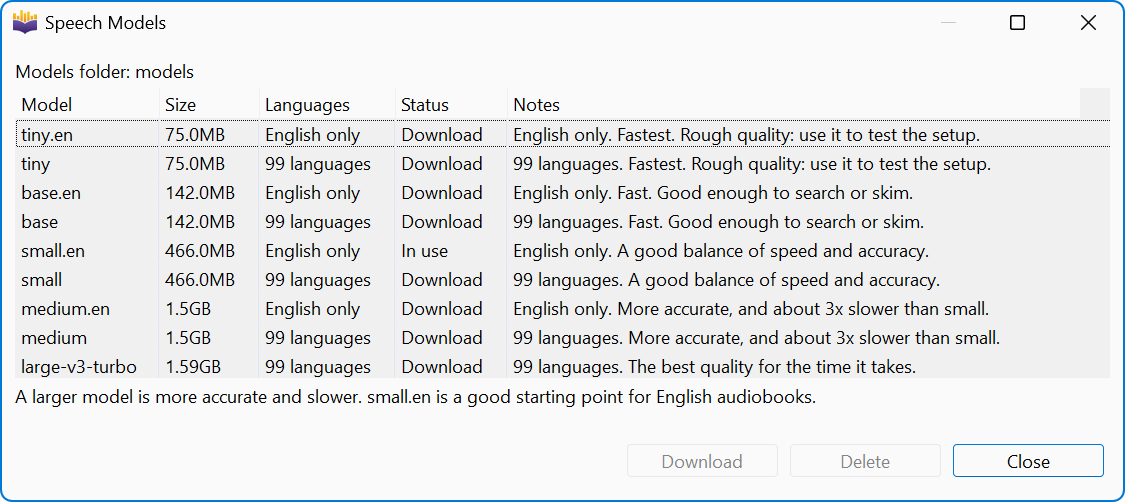
The rest of the list, for when you do want to experiment. Bigger models are more accurate and slower. A name ending in is English-only, and is both faster and more accurate at English than the same-size multilingual model; if you install both variants and the book is in English, OpenAudible picks the one for you.
| Model | Size | Use it when |
|---|---|---|
| tiny.en / tiny | 75 MB | You only want to confirm the setup works. Quality is rough. |
| base.en / base | 142 MB | Fast, and good enough to search or skim. |
| small.en / small | 466 MB | The recommended choice — a good balance of speed and accuracy. |
| medium.en / medium | 1.5 GB | More accurate, and about three times slower than small. |
| large-v3-turbo | 1.6 GB | The best quality for the time it takes. Multilingual. |
If a transcript from small reads well enough for what you want, there is no reason to spend three times the wall-clock time on medium.
2. Pick your transcript formats
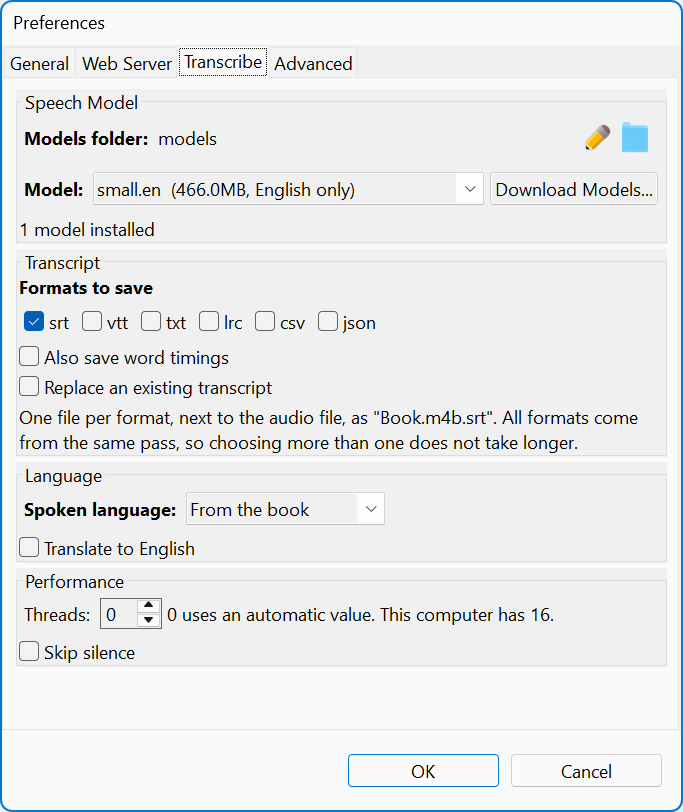
You can skip this step too. Still on the
Transcribe tab, Formats to save starts at
srt, and srt is the right answer for almost everyone: every media player,
subtitle editor and transcript tool reads it, and it is what drives reading along inside
OpenAudible. Leave it as it is and go to step 3.
The one checkbox worth turning on is Also save word timings, which writes a second file with the time of every individual word. It is what makes Follow audio land on the right word rather than the right line. Turn it on if you plan to read along with the narration.
Anything beyond that is for a specific purpose — a plain txt to read
on an e-reader, json to write a script against. Every format comes out of
the same pass, so asking for six costs exactly as much time as asking for one; see
Which format do you want? below if you need one.
One more setting sits nearby: Replace an existing transcript. When off, a book is skipped if it already has every format you asked for. Leave it off while working through a library; turn it on to redo a book with a better model.
3. Transcribe a book
- Select one or more books that have a converted audio file.
- Choose .
- The books go into a transcribe queue and show a "Transcribing" status in the book table while they run. You can keep using OpenAudible — browse, download, convert, play something else.

Books run one at a time. The speech engine already uses every core it can, so a second simultaneous job would only make both slower. Progress shows the position in the book, elapsed time and an estimate of the time left; for a book that is already split into chapter files it also counts parts, as "part 3 of 24".
Start with one short book. Transcribing is slower than converting and it will run your fans. Time one title end to end before you queue a shelf, and you will know what you are committing to. The transcript window opens by itself when a book finishes.
Unlike a Yoto card or a watch transfer, transcription does not need the book split by chapter first. A single M4B produces one transcript covering the whole book, and the book's chapter marks are what group the text into chapters in the reader. If a book is already split, you get one transcript file next to each chapter file instead.
One practical note: an MP3 book starts transcribing immediately, while an M4B or M4A is extracted to a temporary audio file first. Same result, one extra step.
4. Find the files
Transcripts are written next to the audio file and named after it, extension included: a
book saved as Book.m4b gets Book.m4b.srt. There is no output
folder setting — the transcript always lives with its book. If a book is sitting
loose in your "books" folder, OpenAudible first moves it into a folder of its own so the
audio and its transcripts stay together; books already in their own folder stay put.
To see everything you have transcribed, use the Has Transcripts filter in the search bar, or .
5. Read and search it
Select the book and choose . You do not have to leave OpenAudible to use what you just made.
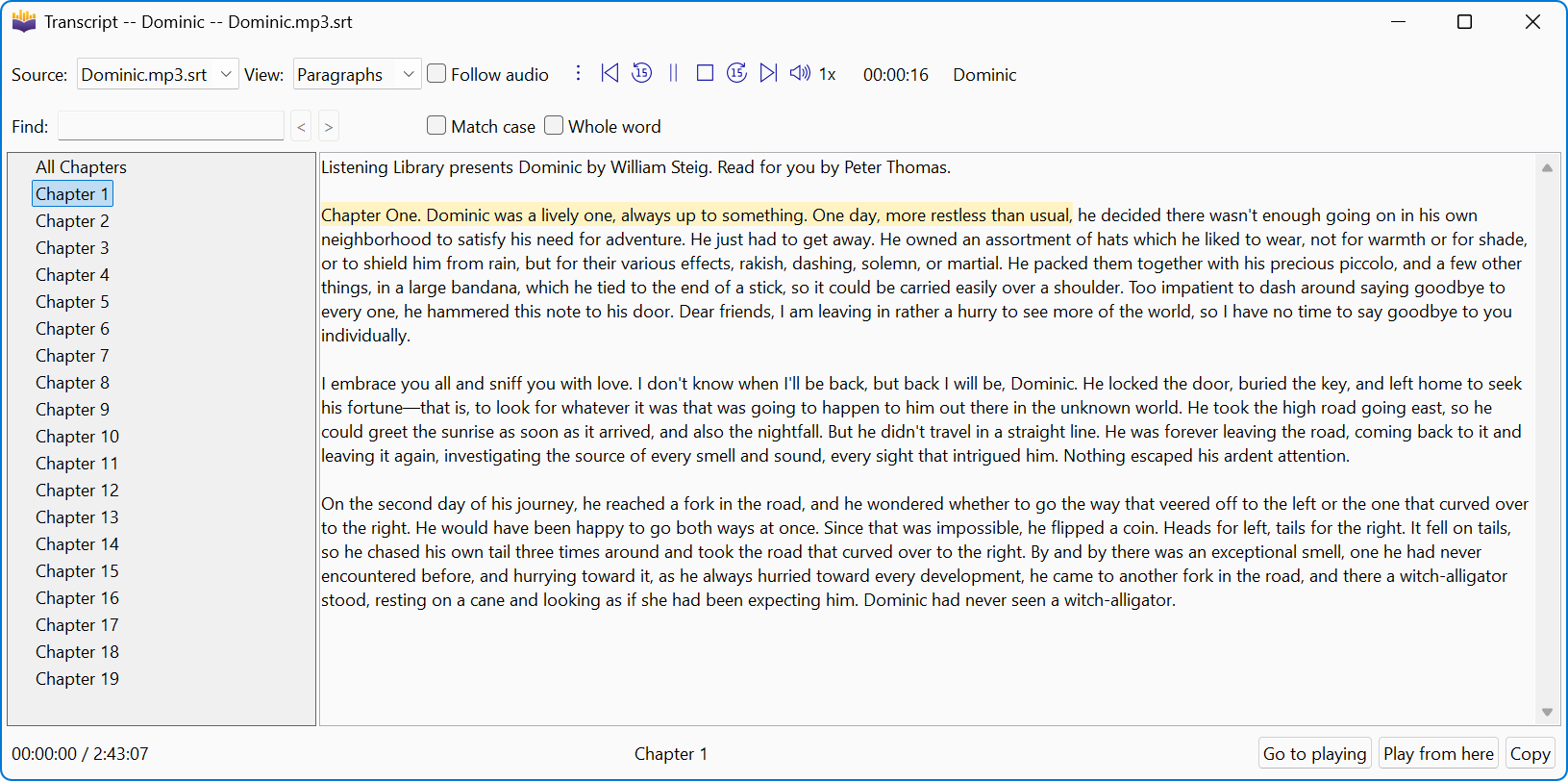
The View menu shows the text four ways:
- Paragraphs — readable prose, sentences grouped into paragraphs. The view to actually read in.
- Timestamps — each line prefixed with its time in the book. The view for citing a passage.
- Chapters — grouped under the book's chapter marks.
- Plain text — no formatting, for copying elsewhere.
Also in the window:
- Find, with next, previous, Match case and Whole word. This is the thing you came for: the book is now searchable.
- A chapter and file list, for navigating a long book or a split one.
- Play from here — right-click a line to start the audio at that point. Read a passage, then hear it.
- Follow audio — scrolls the transcript as the book plays, keeping the spoken words in view, with Go to playing to jump back to them.
- Copy, and a Source menu for switching between the transcript files a book has.
Following the audio needs timings, which only some formats carry. A transcript with no times still displays, but Play from here and Follow audio are switched off.
Which format do you want?
Six formats, and they are not interchangeable. The dividing line is timing: five carry
times, txt does not. Anything you want to read along with, cite by
position, or feed to a player needs timing; anything you just want to read or paste does
not.
| Format | Timing | What it is, and when to pick it |
|---|---|---|
| srt | Yes | SubRip subtitles: numbered cues, each with a start and end time. The safe default — every media player, subtitle editor and transcript tool reads it, and it is what drives Follow audio. |
| vtt | Yes | WebVTT. The same idea as srt, in the format browsers read natively. Pick it if
the transcript is going onto a web page or into a
<track> tag.
|
| lrc | Yes | Lyric timing, one timestamp per line. Small, and widely supported by music players and by audiobook apps that show scrolling text. |
| txt | No | Just the words. The one to open in a text editor, read on an e-reader, or paste into notes. No way to jump back to the audio. |
| csv | Yes | One row per segment with its times as columns. For a spreadsheet or a script of your own — the format for processing a transcript rather than reading it. |
| json | Yes | The full structured result: segments, times, and the engine's own metadata. The richest output, and the one to use if you are building something on top of it. |
Also save word timings adds one more file alongside these, ending in
.jf.json, holding the time of every single word. It is what makes reading
along land on the right word rather than the right line.
A reasonable default: srt plus txt. The srt
keeps you tied to the audio inside OpenAudible; the txt is the file you can read, search
and quote anywhere else. Add json if you plan to do anything programmatic
with it.
Feeding a transcript to an LLM
A raw transcript is speech, not prose: run-on sentences, thin punctuation, no headings. That is exactly the kind of text a chatbot is good at cleaning up, and a transcript is plain text, so nothing stops you. OpenAudible has no built-in AI features and does not talk to any LLM. This is copy and paste, done by you, in whatever tool you already use.
Getting the text out:
- Open , switch View to Plain text, select the part you want and use Copy. The chapter list makes it easy to take one chapter at a time.
- Or enable the
txtformat and open the file next to your audio in any editor.
Things worth asking for once it is pasted in:
- Punctuation and paragraphs — "add punctuation and paragraph breaks, change no words." The single biggest readability win.
- A summary — a chapter, or a whole non-fiction book, down to the argument and the examples.
- Fix the proper nouns — speech models guess at names. Give it the correct spellings from the book's description and ask it to apply them throughout.
- Study material — an outline, a glossary of the names and terms, or questions to test yourself on.
- Find the passage you half-remember — describe it and ask which part of the text it is in. If you pasted from the Timestamps view instead, the answer comes back with a time you can play from.
- Translate a section, when Translate to English is not the direction you need.
Two practical limits. A full audiobook is a lot of text — a chapter at a time is more reliable than a whole book, and keeps the answers specific. And pasting into a hosted chatbot sends that text to someone else's server: the transcription itself never left your machine, but this step does, so it is a decision to make deliberately for a book you do not own the rights to.
Settings worth knowing about
All of these are on the Transcribe tab of .
- Spoken language — "From the book" uses the language in the book details, which is usually right. "Detect automatically" lets the engine decide. Or name the language yourself, which is the most reliable option for a non-English book.
- Translate to English — writes the transcript in English no matter what is spoken.
- Threads — how many CPU threads to use; 0 picks a value for you, and the maximum is your core count. More threads finish sooner but leave less machine for everything else, so turn it down if you want to keep working while a long book runs.
- Skip silence — skips stretches with no speech, which saves real time on books with long gaps. It needs a small separate detection model, available in the Speech Models dialog; without it, OpenAudible transcribes the whole file rather than failing.
- Models folder — where models are kept. Changing it points OpenAudible at a different set of models; it does not move the ones you already have. You can also drop a model file in here by hand.
- Extra arguments — passed to the speech engine unchanged, after everything else. This one only appears in expert mode, and there is no reason to touch it unless you know the engine's options; wrong values stop transcription.
Common problems
- Choosing Transcribe opens the Speech Models dialog. No model is installed yet. Download one and try again — the engine is bundled, the model is not.
- "No audio file was found for the selected books." The book has not been converted yet, or only exists as the original protected download, which cannot be transcribed. Convert it with or first.
- Nothing happens when you re-transcribe a book. It is being skipped because it already has every format you asked for. Turn on Replace an existing transcript. Adding a new format to the list is enough on its own — that alone makes the book run again.
- You need to stop it. Use Cancel All Jobs. stops downloads and conversions, not a transcription. A half-written transcript is discarded; parts already finished are kept.
- It is taking hours. That is normal for a long book on a large model. Drop to small.en, raise Threads, or turn on Skip silence.
-
Follow audio and Play from here are switched off. The transcript
that loaded has no timing — likely a txt-only run. Enable
srt, turn on Also save word timings, and transcribe again with Replace an existing transcript on. - Names and unusual words are wrong. Speech models guess at proper nouns. A larger model helps and nothing makes it perfect, so search for what you expect to find phonetically rather than by exact spelling.
- The wrong language comes out. Set Spoken language explicitly instead of leaving it on detection.
Next
Download OpenAudible and transcribe a short book to see what your machine makes of it, or read Transcribing Audiobooks in the documentation for the full reference on every setting.